English
Document Chat
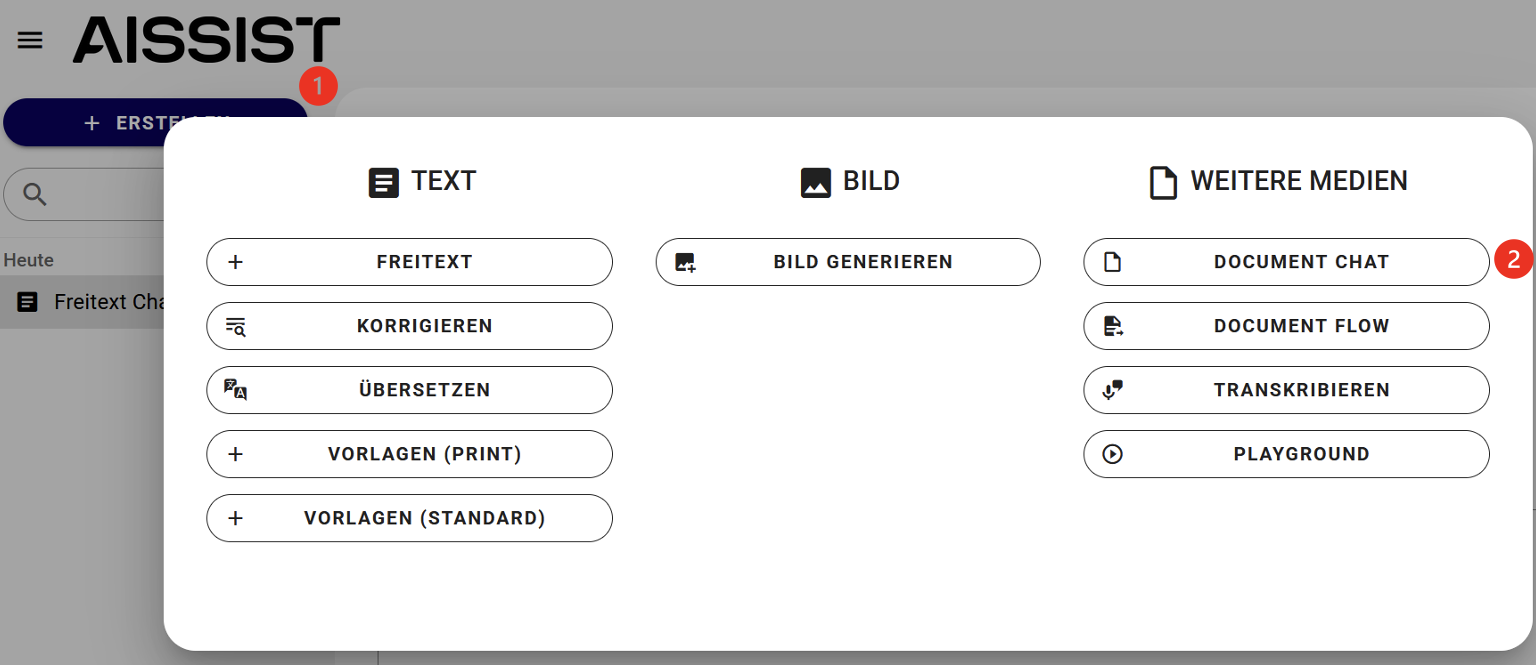
After clicking the "+ Create" button, select the "Document Chat" function.
The interface now opens with an upload sidebar on the left side.
Create a Summary
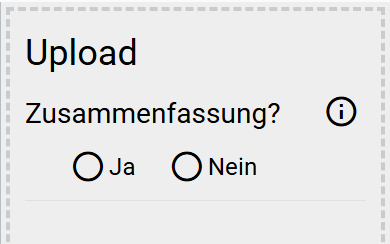
If you want a summary of your document to be generated first, click "Yes". If you want to start interacting with the document immediately, select "No".
Upload a File
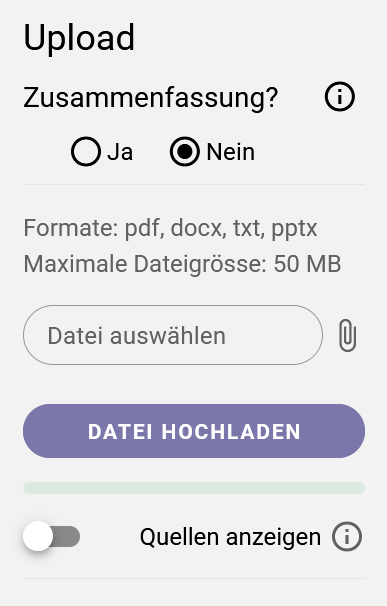
After your selection, the option to choose a document from your files opens. This function supports various document formats.
Then click the "Upload file" button.
While the tool is still processing the information from the document, you will see the status "Processing". Once the document is ready, the status changes and you can start communicating with the document.
Sources
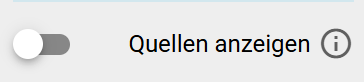
If you want to track where AISSIST retrieved the information from your document, toggle the "Show sources" switch.
This way, the response will show which source sections it is based on.