English
Interface
1. Menu icon:
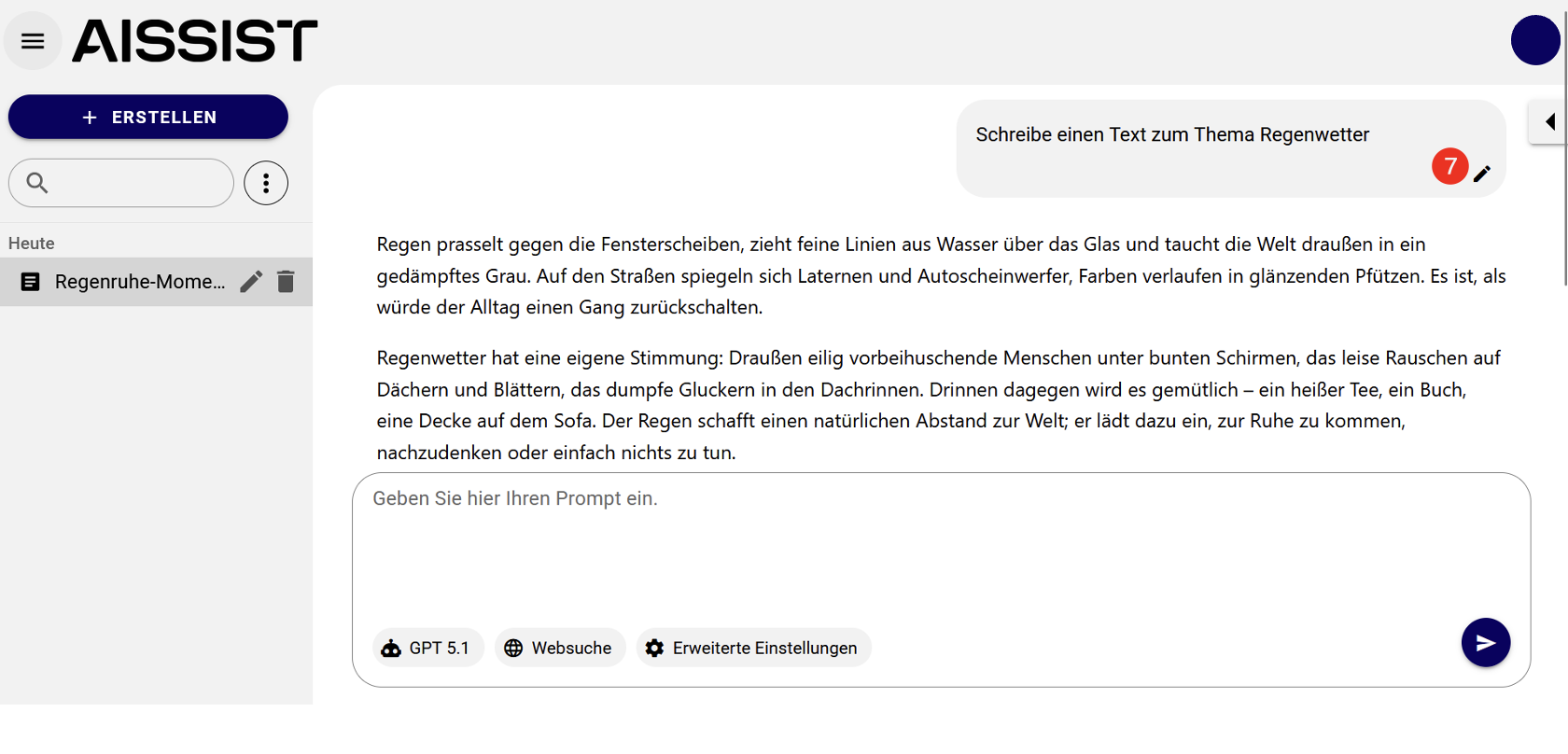
Clicking the menu icon1 (represented by three horizontal lines in the upper left corner) opens and closes the sidebar. Your personal chats are displayed there.
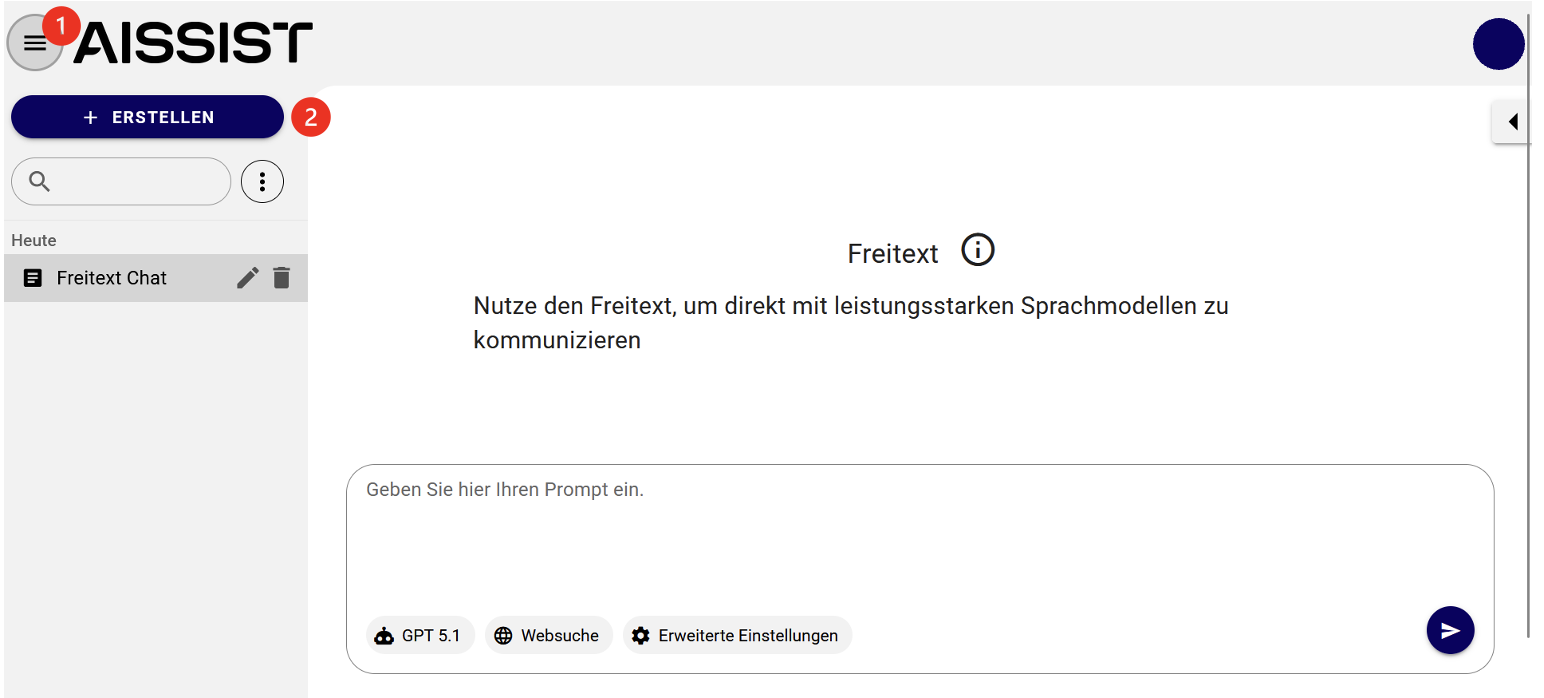
2. + CREATE:
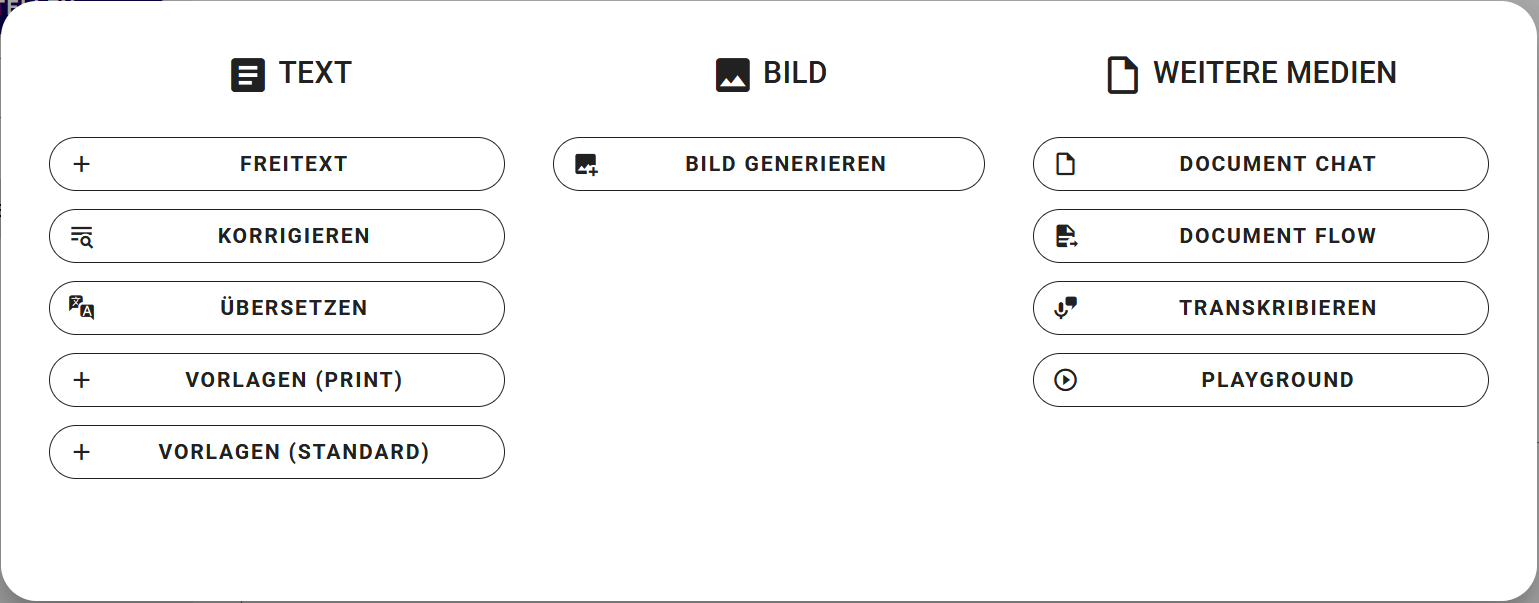
Clicking the blue "+ Create"2 button opens a selection window. Here you can choose for which use case a new chat should be created.
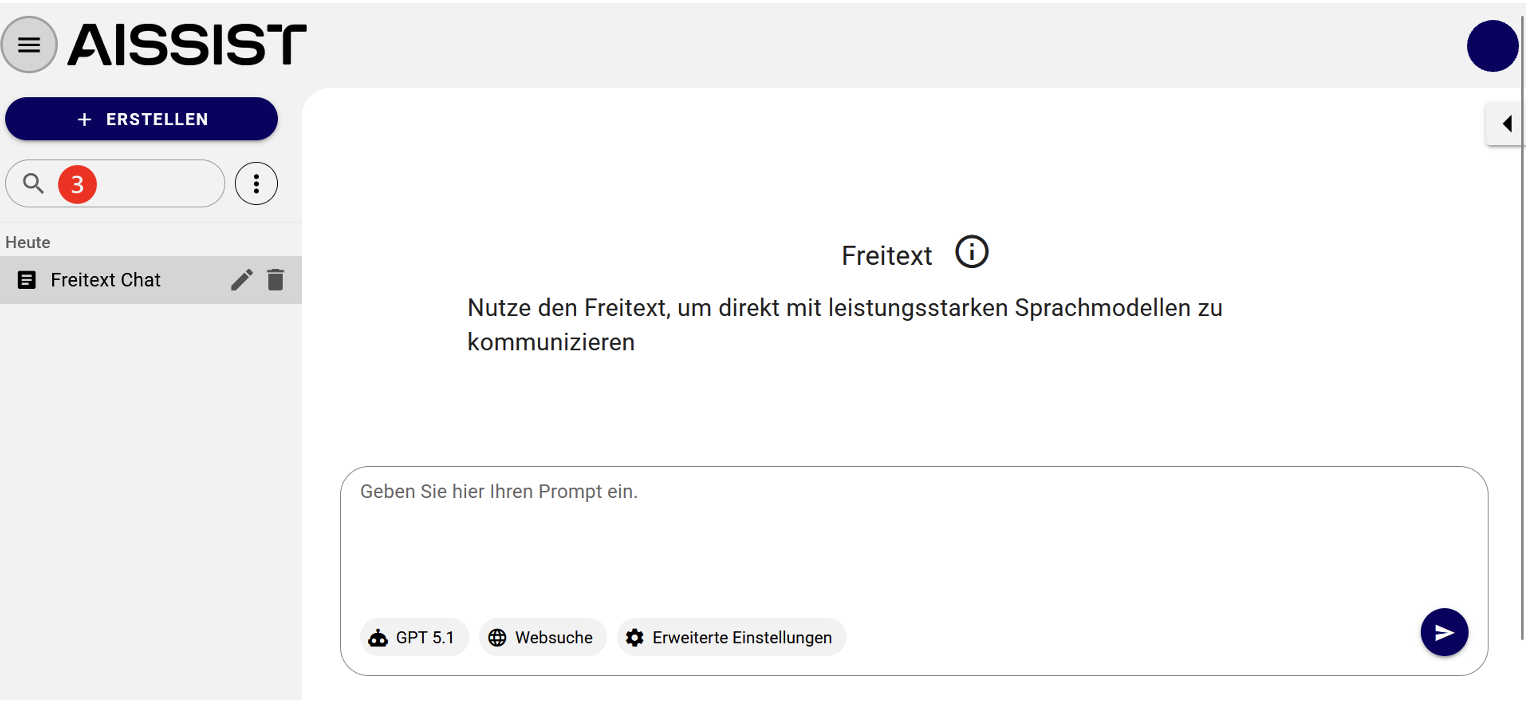
3. Search bar:
The search bar can be used to search for chat names3. It is recommended to name open chats by topic in order to improve clarity in AISSIST.
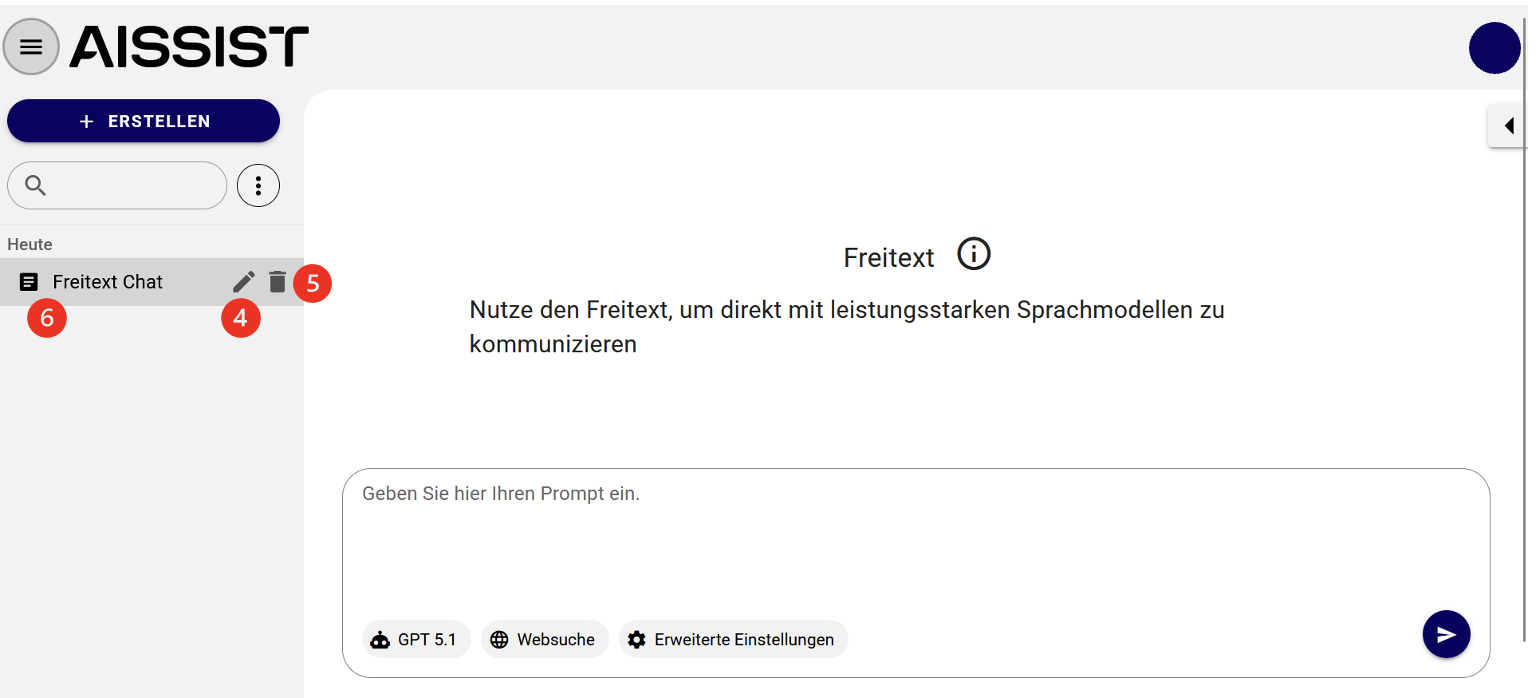
4. Chat display:
The pencil icon can be used to rename a chat4. The trash icon is used to delete the chat5. The currently open chat is highlighted in grey in the left sidebar. The type of chat is indicated by various icons to the left of the chat name6.
Chats are also sorted by edit date. This means that recently edited chats automatically move to the top of the list. Editing includes sending a new message, interacting with use cases such as translation, renaming the chat, and even typing in the chat box.
5. Prompt field:
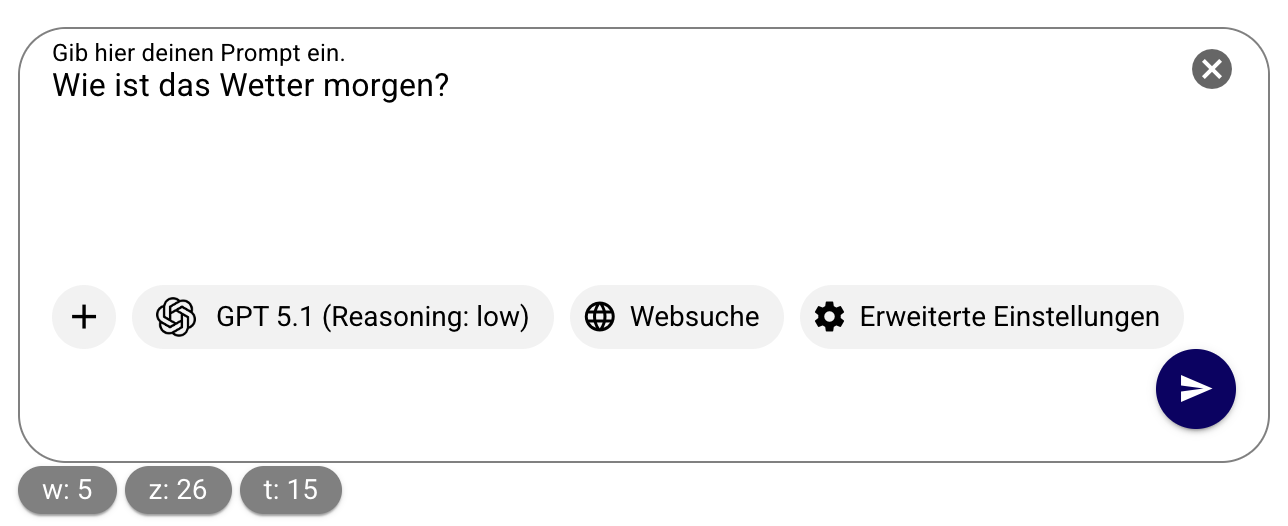
In the prompt field, you can enter your questions, tasks or instructions and send them using the arrow. Both the input and the output of the chat show how many words (w), characters (c) and tokens (t) are contained:
6. Editing input:
The pencil icon below the user input can be used to subsequently change or improve the text input in AISSIST7. By confirming the improved input, the correction can be sent again.
7. Account:
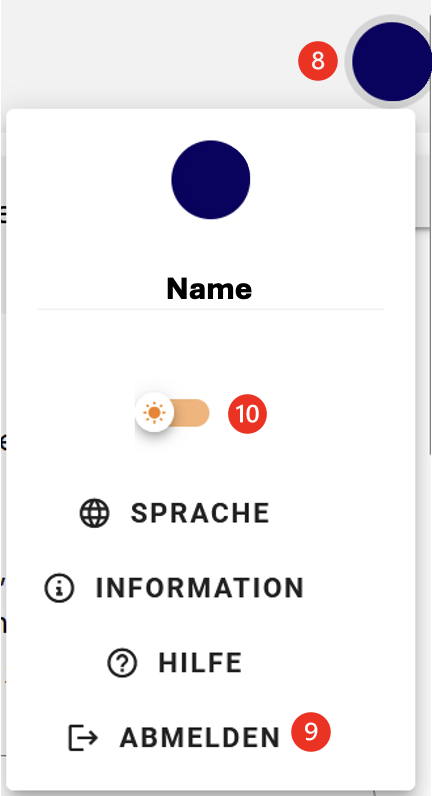
Clicking on your account in the upper right corner8 allows you to log out9 or switch between light and dark mode10. You can also change the interface language or view the latest release information there.
8. Files:
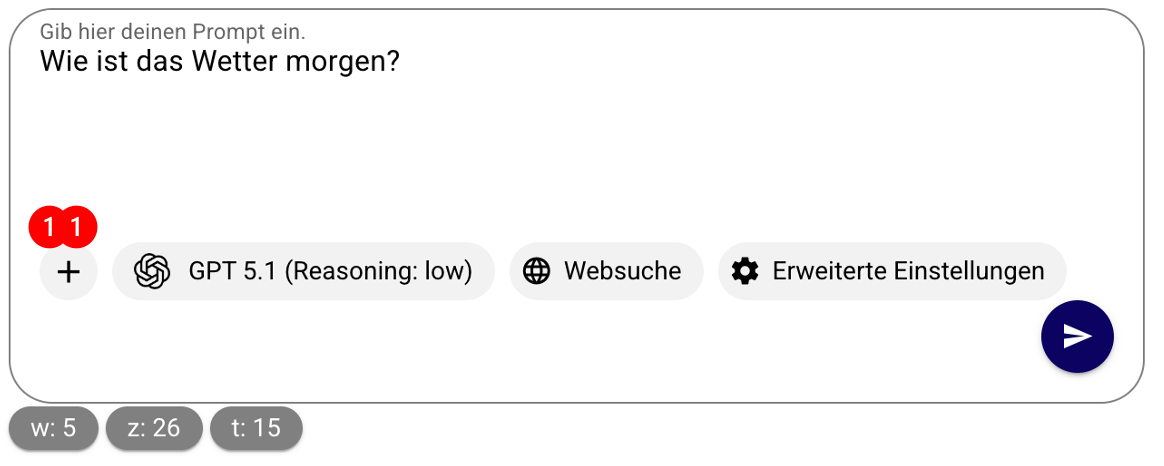
If you look in the prompt field, you will see a plus sign11. There you can add images / files, similar to major providers, in order to provide the language model with additional information.
For more information on handling files, see the Chat and Other Media sections.
Navigation
The navigation on the left side enables the grouping of sessions. This greatly facilitates the organisation and management of your chats. In addition, multi-selection is available, allowing you to delete multiple sessions at once. This feature saves time and increases efficiency when managing your chat history.