English
Installing the AISSIST App
Requirements
- Microsoft Edge as browser
Scope of Functions
The AISSIST app offers the same range of functions as the web version.
All features and operating procedures are identical.
Installing the AISSIST App
- Open AISSIST in Microsoft Edge.
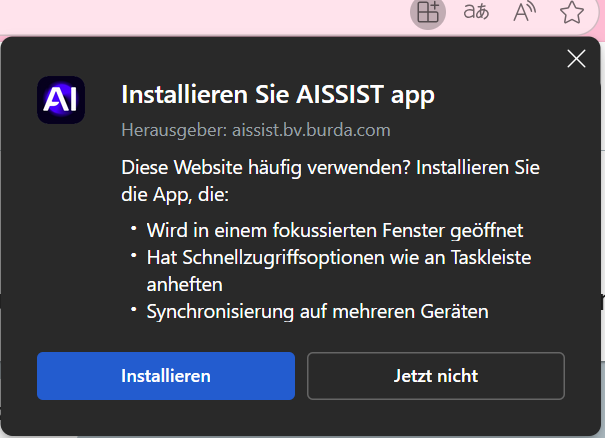
- Click the installation icon on the right side of the Edge address bar.1
→ An installation window opens. - Click "Install" in the installation window.2
→ The installation of the AISSIST app begins.

On Windows
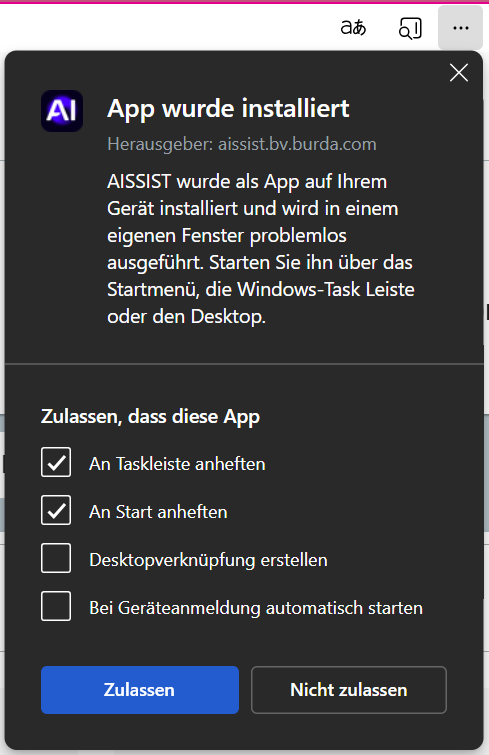
On Windows, an additional window then opens where you can enable or disable the following options:3
- Pin to taskbar
- Pin to Start
- Create desktop shortcut
- Start automatically on device login
Confirm your selection to complete the app setup.
On macOS
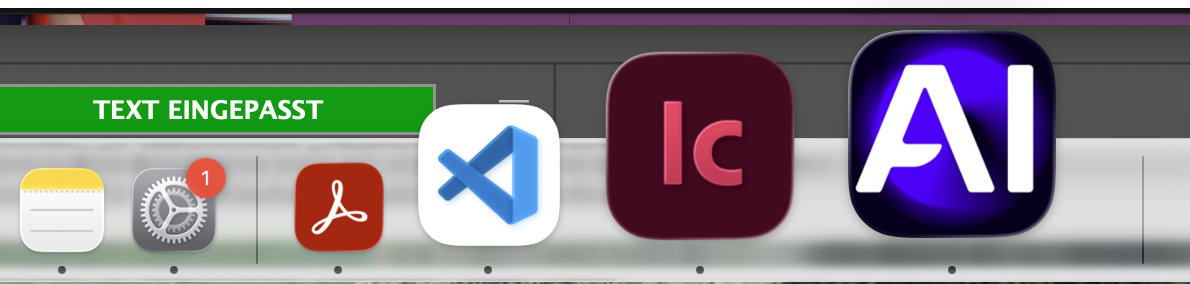
- On macOS, clicking "Install" starts the installation directly, without an additional options window.
- The AISSIST app is automatically placed in the Dock (menu bar) and is available there.
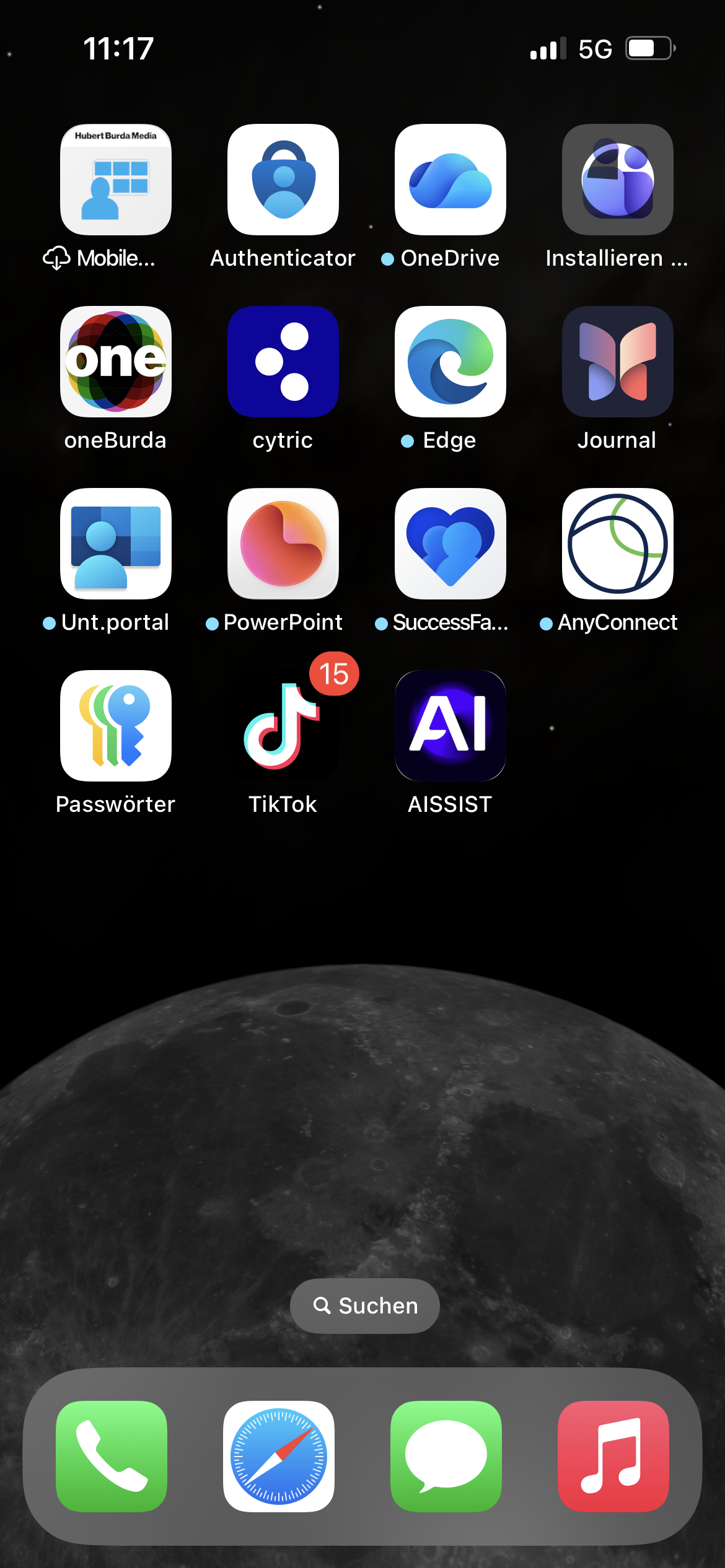
On iPhone (iOS)
On iPhone, AISSIST is added to the home screen as a web app via the browser:
- Open AISSIST in the browser (e.g. Safari or Microsoft Edge for iOS).
- Tap the Share icon (square with an arrow pointing up).
- Select "Add to Home Screen" (Safari) or the corresponding option in Edge.
- Confirm the suggested name or adjust it, then tap "Add".
AISSIST now appears as an app icon on your home screen and can be launched like a regular app.