English
Translate
Based on DeepL Translate, you can use AISSIST's translation feature to translate texts and documents. Open Create in the top-left corner and select Translate under Text.
Translating text
- Choose a source language (optional): Use Select source language to set the language on the left. If you leave Detect language selected, the source language is detected automatically (Fig. 1, no. 1).
- Choose a target language: Select the desired language on the right under Select target language (Fig. 1, no. 2).
- Enter text: Enter the text to translate on the left in Enter text to translate. The translation is displayed automatically in the field on the right (Fig. 1, no. 3, Fig. 1, no. 4).
There is a copy button below both input fields. Use it to copy the contents of the respective field to the clipboard (Fig. 1, no. 5, Fig. 1, no. 6).
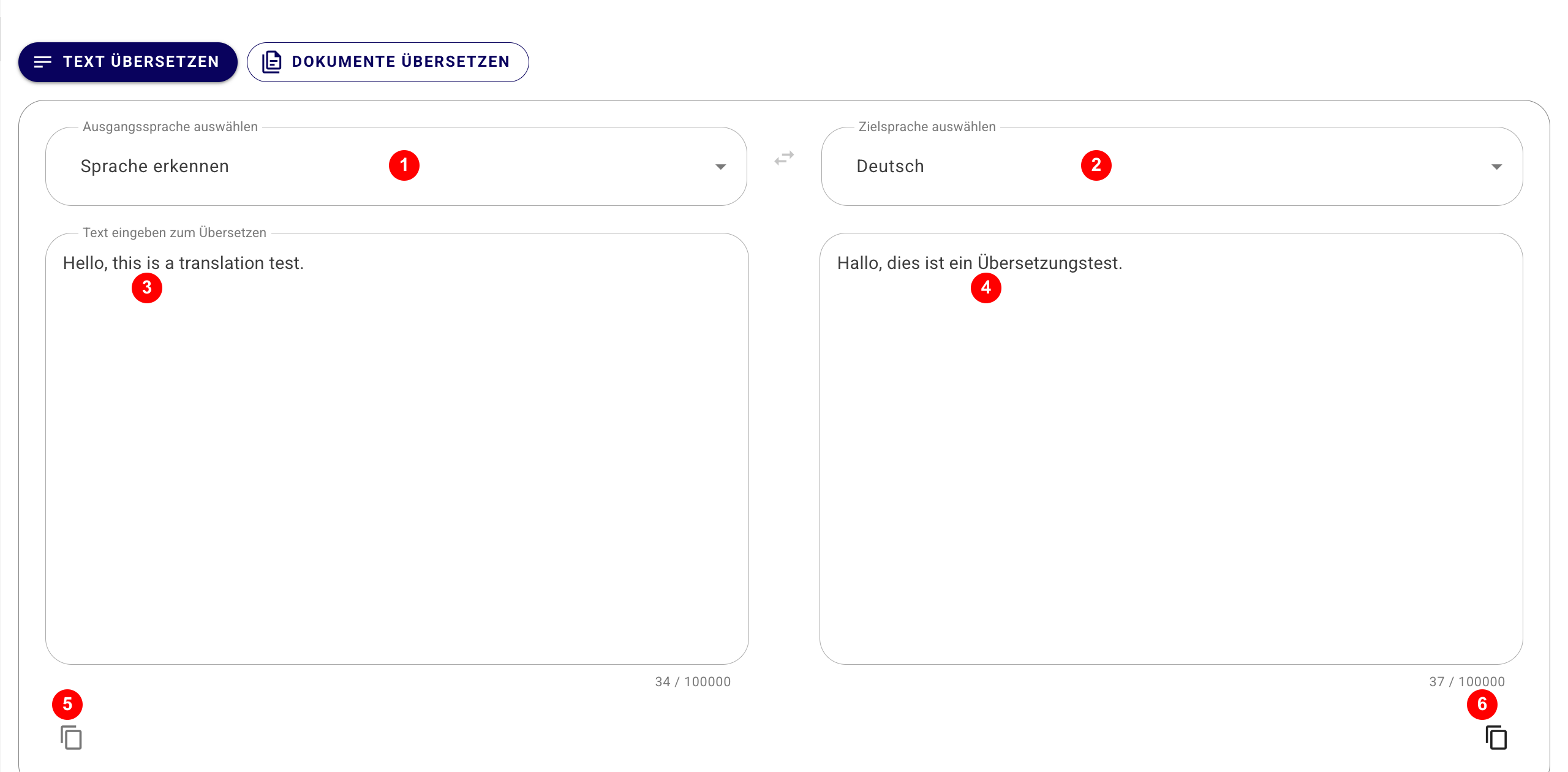
Figure 1: Text translation with automatic language detection, target language, input, translation and copy buttons.
Translating documents
You can also upload and translate one or more documents.
- Select Translate Documents at the top.
- Under Select source language, select the source language or leave Detect language selected. Set the target language on the right under Select target language (Fig. 2, no. 1, Fig. 2, no. 2).
- Upload one or more documents by dragging them to the marked area or by clicking the area and selecting them in the file dialog (Fig. 2, no. 3). The interface accepts PDF, DOCX, DOC, PPTX and XLSX, with a maximum size of 20 MB per file.
- Select Start Translation in the bottom-right corner (Fig. 2, no. 4).
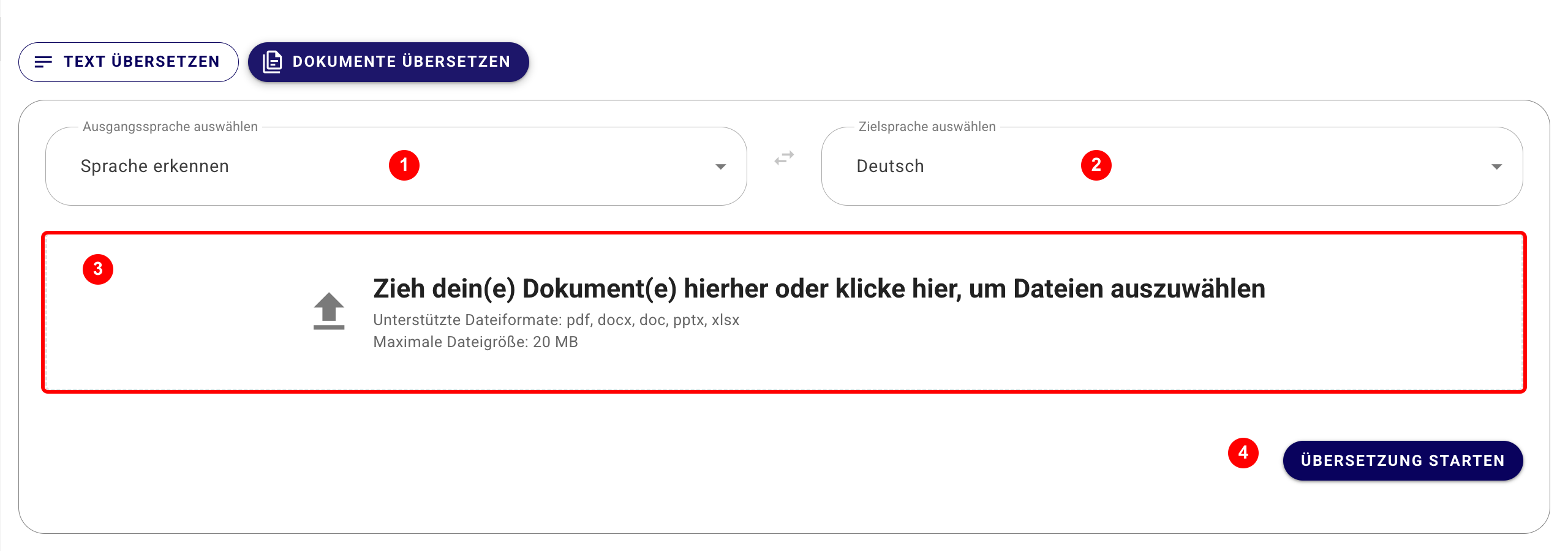
Figure 2: Document translation with language selection, upload area, supported file formats and start button.