English
Generate Image
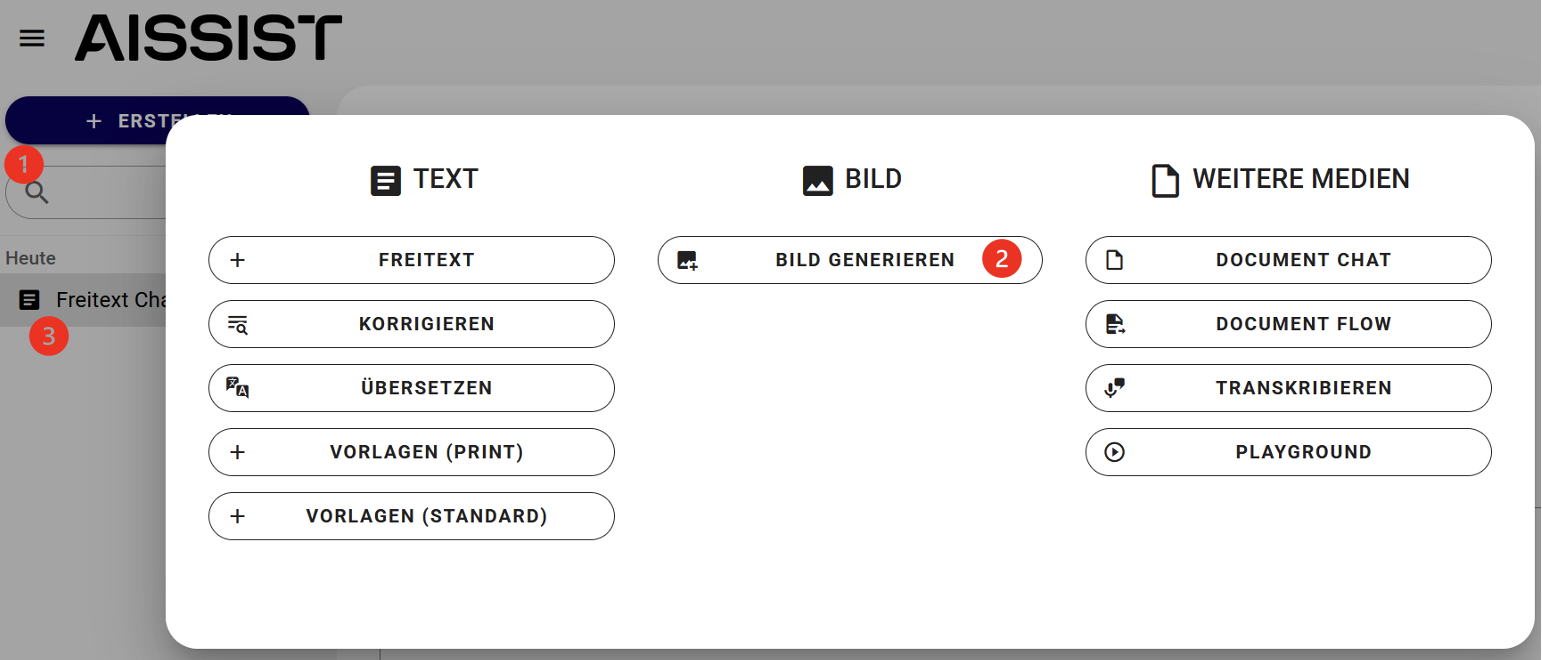
By clicking "+ CREATE" in the AISSIST interface1, the "Generate Image"2 service can be started. In this use case, pixel-based images can be generated by entering an image prompt.
A new chat opens, which is displayed on the left side3. After entering the first prompt, this chat is automatically named. This name can be changed at any time using the pencil icon.
Within a chat, multiple results can be generated. These can be adjusted by entering new prompts or changing settings.
Model Selection
Under the "Model Selection" menu item, the image generators connected to AISSIST can be selected1.
Aspect Ratio
Under the "Aspect Ratio" menu item, the desired aspect ratio can be selected2. Depending on the image generator, there may be differences here.
Image Category
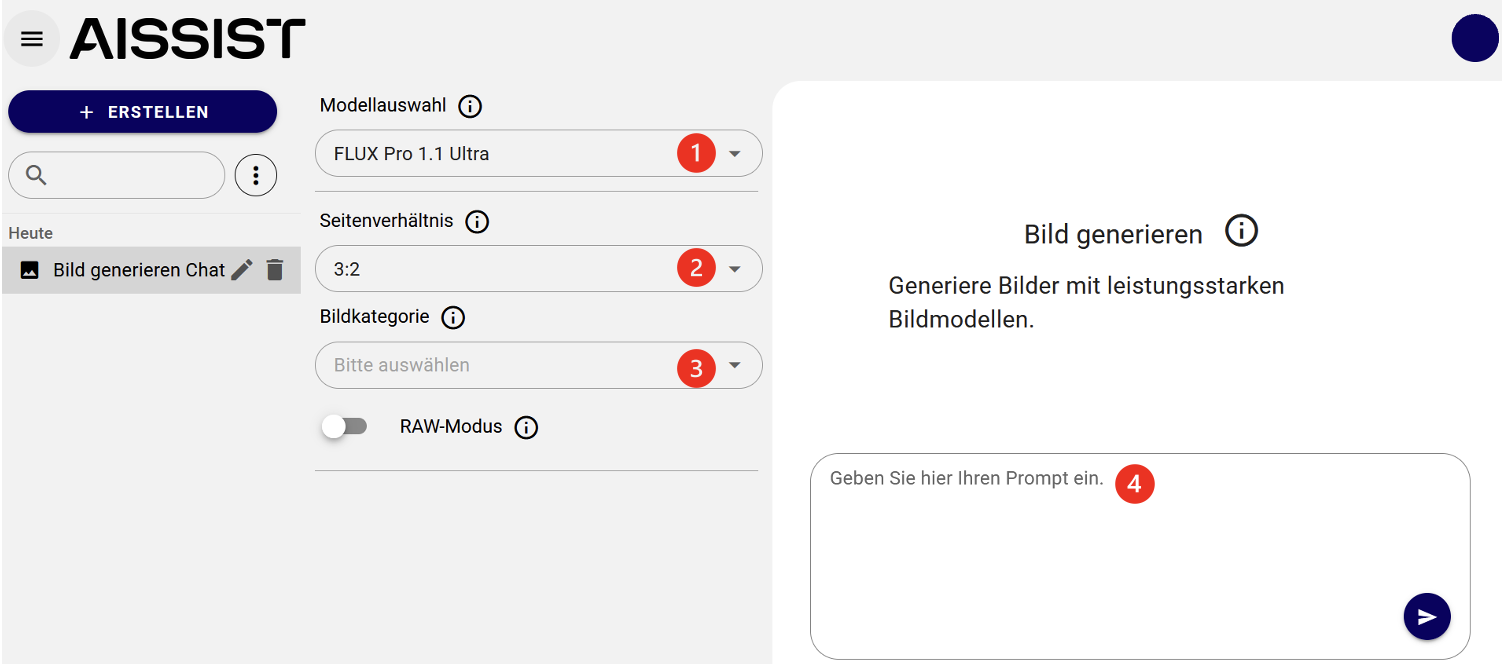
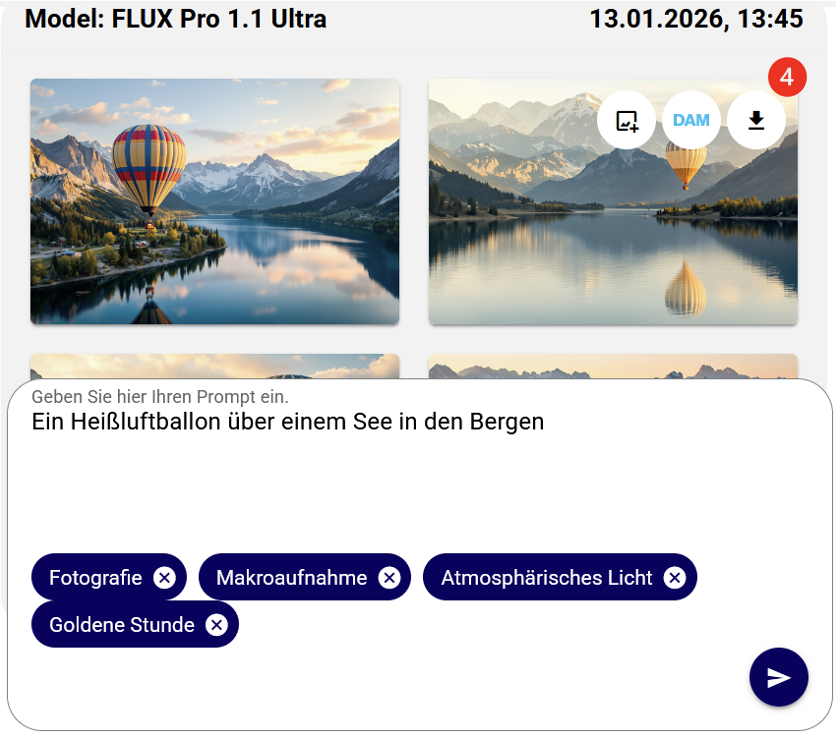
Under the "Image Category" menu item, you can choose between "Photography" and "Art"3. This selection is optional. If no selection is made, the chosen image generator model decides which type of image category is generated. Alternatively, the desired image category can also be entered manually in the prompt input field4.
Only when one of the two image categories "Photography" or "Art" is selected does an additional menu item called "Advanced Settings" appear.
RAW Mode in FLUX
The RAW mode allows images to be generated with a natural and less synthetic aesthetic that resembles the impression of real snapshots. In addition, the RAW mode increases the variety of human subjects and significantly improves realism in nature photography.
Advanced Settings
Under the "Advanced Settings" menu item, a selection can be made from the areas "Style"1, "Lighting Effect"2 and "Colour"3.
Behind each selection option is a predefined "prompt addition". This is added to the prompt entered by the user to steer the image generation in the desired direction. The optional prompt additions can be viewed in the chat history.
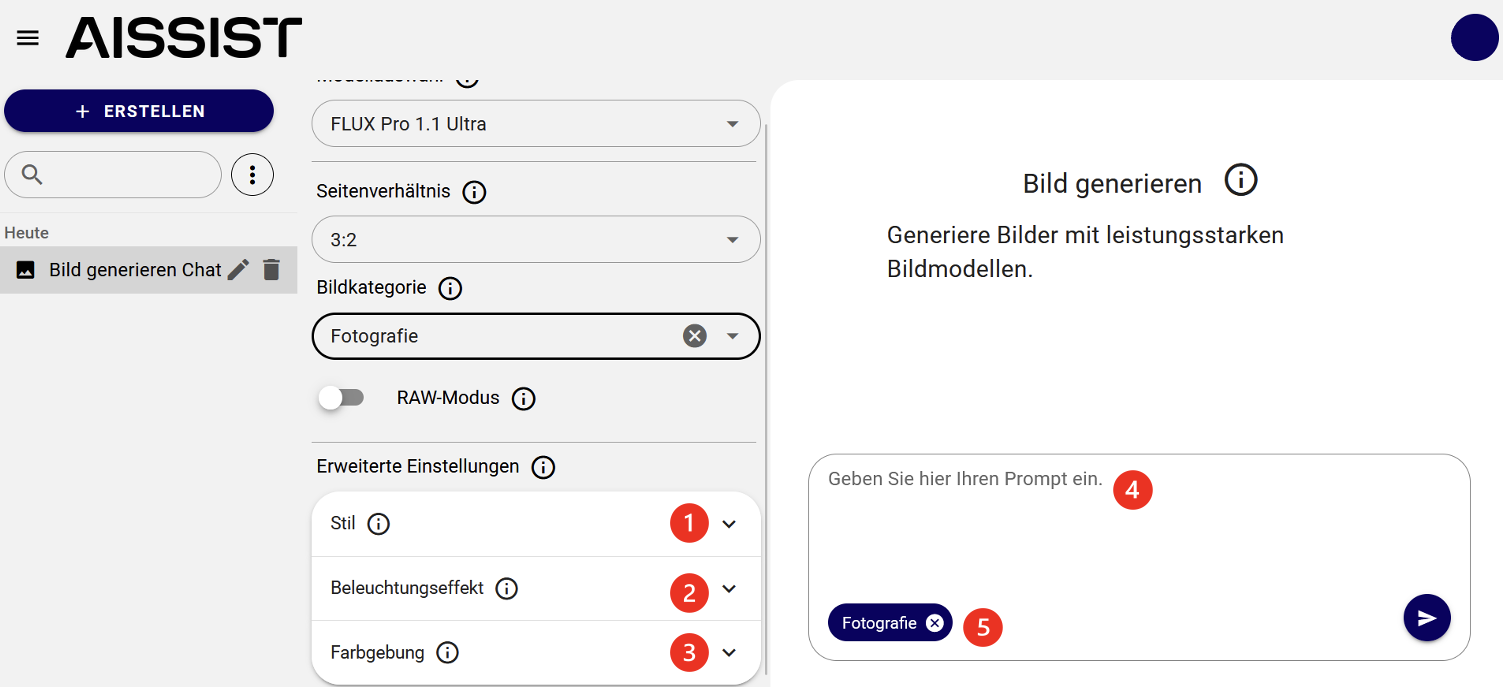
If the presets from the "Style", "Lighting Effect" and "Colour" areas do not meet your requirements, you can of course formulate your own specifications in the prompt input field4.
When a selection has been made in the "Image Category", "Style", "Lighting Effect" and "Colour" areas, it is displayed as a tag in the prompt input field5. The selection can be removed again using the "X" on the respective tag.
If you delete the selected tag "Photography" or "Art" in the prompt input field, the prompt additions chosen from the "Advanced Settings" area that depend on these two categories are also deleted.
Style
Under the "Style" menu item, you can select various styles for the image categories "Photography" and "Art". These influence the image framing, perspective and artistic feel of the image.
The following style options are available:
Close-up
Shows a tight image framing where the subject appears large and detailed in the image.
The background is largely hidden and recedes.
Macro shot
Extremely close to the subject, e.g. insects, flowers or surface textures.
Tiny details are shown greatly magnified.
Landscape shot
Wide scenes with lots of surroundings, e.g. mountains, fields, cities.
The focus is often on the horizon, sky and depth of field.
Bird's eye view
View from top to bottom, as if you were looking from the air or from a high vantage point.
Well suited for showing relationships and arrangements.
Worm's eye view
View from very far below upwards, as if you were looking up from the ground.
Makes subjects often appear larger, more powerful or more dramatic.
Wide-angle shot
Large image framing with lots of surroundings.
Looks dynamic and conveys a sense of space or movement.
Watercolour
Image style as if painted with watercolours:
soft edges, flowing colours, overall more painterly than realistic.
Line drawing
Image in line style, usually without or with very little colour –
similar to a sketch, a technical drawing or comic outline.
Illustration
Graphic, drawn style (e.g. book illustration, magazine image).
Less photorealistic, with clear shapes and a stylised look.
Lighting Effect
Under the "Lighting Effect" menu item, you can select various lighting situations for the image category "Photography". These influence the mood of the light, contrasts and the overall effect of the image.
The following options are available:
Atmospheric light
Atmospheric light with light rays or colour gradients that creates a specific atmosphere
(e.g. mystical, romantic, dramatic).
Studio lighting
Controlled, professional light as in a photo studio:
clearly lit subjects with soft shadows and light accents.
Backlight
The light source is behind the subject and directed towards the camera.
This often results in silhouettes, rim light and strong contrasts.
Natural light
The ambient light comes from natural sources, mainly sunlight – direct or indirect
(e.g. through clouds, windows or reflections).
Soft light
Soft, gentle shadows without hard edges.
This lighting is particularly flattering for skin and is frequently used in portrait photography.
Hard light
Strong, deep dark shadows with clearly defined edges.
Well suited for highlighting surface textures and details.
Colour
Under the "Colour" menu item, you can make settings for the image categories "Photography" and "Art" that influence the colour of the image.
The following options are available:
Golden hour
Lighting mood like shortly after sunrise or shortly before sunset:
warm, golden light, long shadows, overall very atmospheric.
Natural colours
Colour representation similar to human perception –
neither particularly vivid nor particularly pale.
Saturated colours
Strong, vivid colours with high intensity.
- Warm, saturated colours often appear energetic, cheerful or dramatic.
- Cool, saturated colours appear more futuristic and distant.
Desaturated colours
Subdued, pale colours with lower intensity.
Looks subtle, often somewhat nostalgic or melancholic.
Greyscale
Representation only in black, white and grey tones – without colour information.
Reminiscent of classic black-and-white photography.
Prompt Input Field
The prompt input field contains the optionally selected settings from the "Image Category" and "Advanced Settings" areas in the form of tags. Clicking the arrow icon at the bottom right starts the image generation.
Language Support
The prompt can be entered in AISSIST in all languages supported by the "DeepL" translator. The prompts are automatically translated into English before being sent to the image generator model.
Receiving Image Results
The respective image generator always delivers four images as a result. The creation date is always shown in the upper right of the set of four in the chat history, the selected model in the upper left. The aspect ratio is also shown at the bottom right.
The composed image prompt is visible in English above the image results as a chat message. The first part consists of the entered positive image prompt. The second part consists of the prompt additions resulting from the selection in the "Image Category", "Style", "Lighting Effect" and/or "Colour" areas.
After receiving a set of four in a chat, the original prompt can be deleted and the next image prompt can be formulated in the same chat. Switching the image generator model within a chat is also possible.
If you want to run a specific image prompt again at a later time, you can copy it using the copy icon on an older prompt input and paste it back into the prompt input field. Any unnecessary prompt additions may need to be deleted.
The image results are available in the chat history for two weeks, after which they are automatically deleted. Only the entered image prompts are then retained.
Large Image Preview
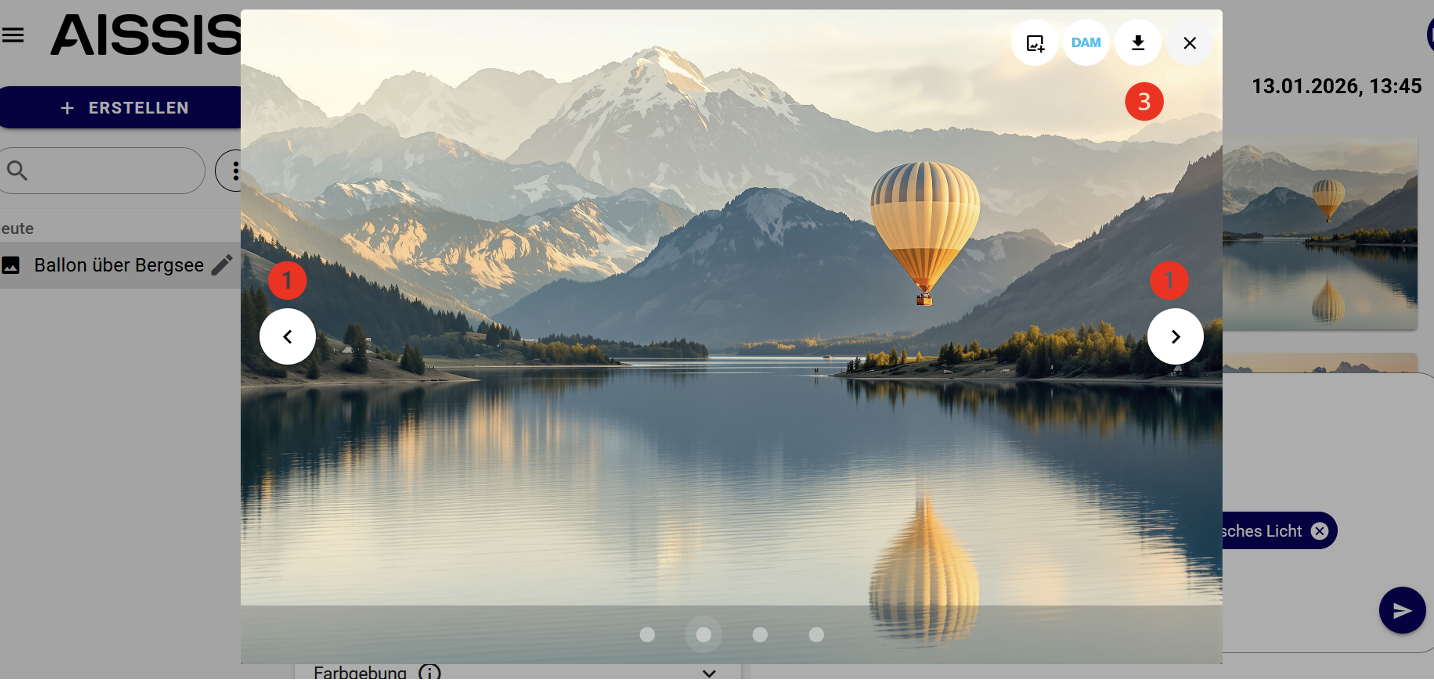
It is possible to view the four generated images in an enlarged form. When you move the mouse pointer over one of the images, it is outlined in dark. The mouse pointer changes to a magnifying glass icon. Double-clicking on the image opens the enlarged single view.
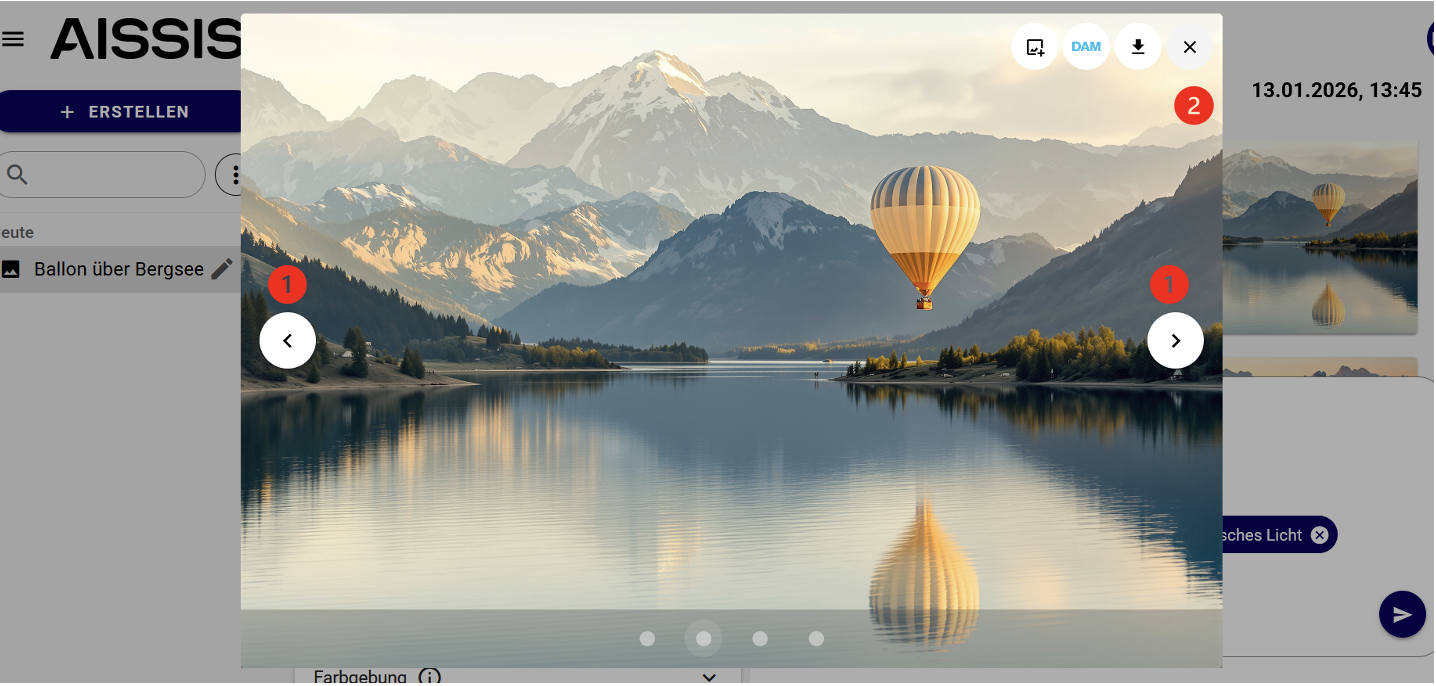
The arrows on the left and right of the image can be used to switch between the image results1.
"X" closes the view again2.
Downloading
You can download the generated images from AISSIST. From the enlarged view, the respective image can be downloaded via the icon in the upper right3. In the normal view, this is done by clicking the download icon4 directly in the image.
Downloaded images are upscaled by an AI upscaler. This means they are optimised in terms of resolution to up to 16MP (applies to the 1:1 aspect ratio).
Content Filter
Generative image models are generally equipped with mechanisms that prevent offensive content from being generated. Even for prompts that do not appear to contain offensive instructions at first glance, generation may be refused with the error message "Image was rejected due to moderation guidelines."
One possible cause is that the translation from German to English results in word combinations that trigger a moderation guideline. It is worth checking the English image prompt in the history.
Generating Image Variants
Variants of previously generated images can be generated. The "Generate Variants" function is supported by Stable Diffusion 3 Ultra and FLUX Pro 1.1 Ultra. DALLE-3 does not support this function.
The generation of image variants can be triggered with the "Generate Variants" button from the respective set of four1 or from the enlarged view2.
During image generation, no input can be made. The four generated variants are displayed in the chat history as a new set of four.
The generation of image variants can be repeated as many times as desired. Image variants of image variants can also be created. The generation of image variants always uses the image generator that previously created the reference image.
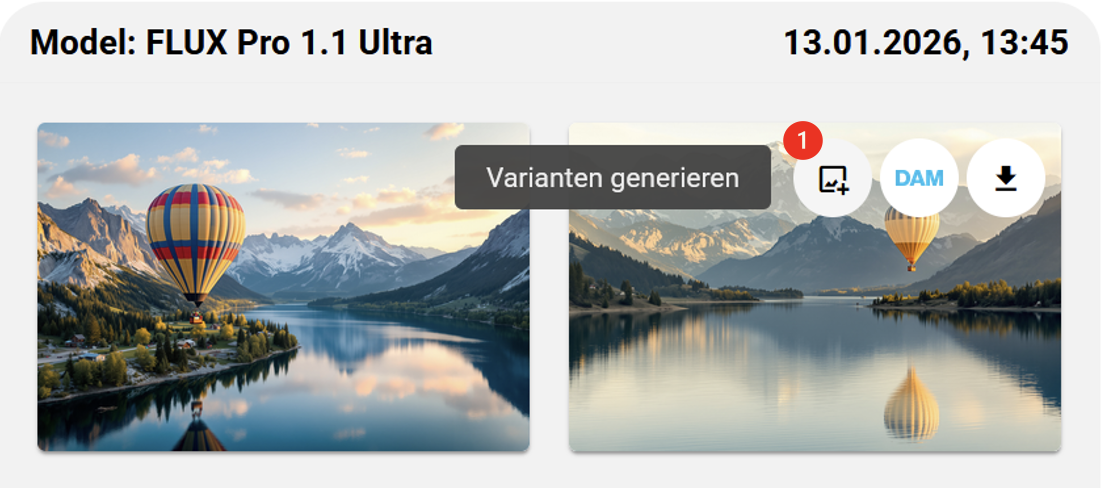
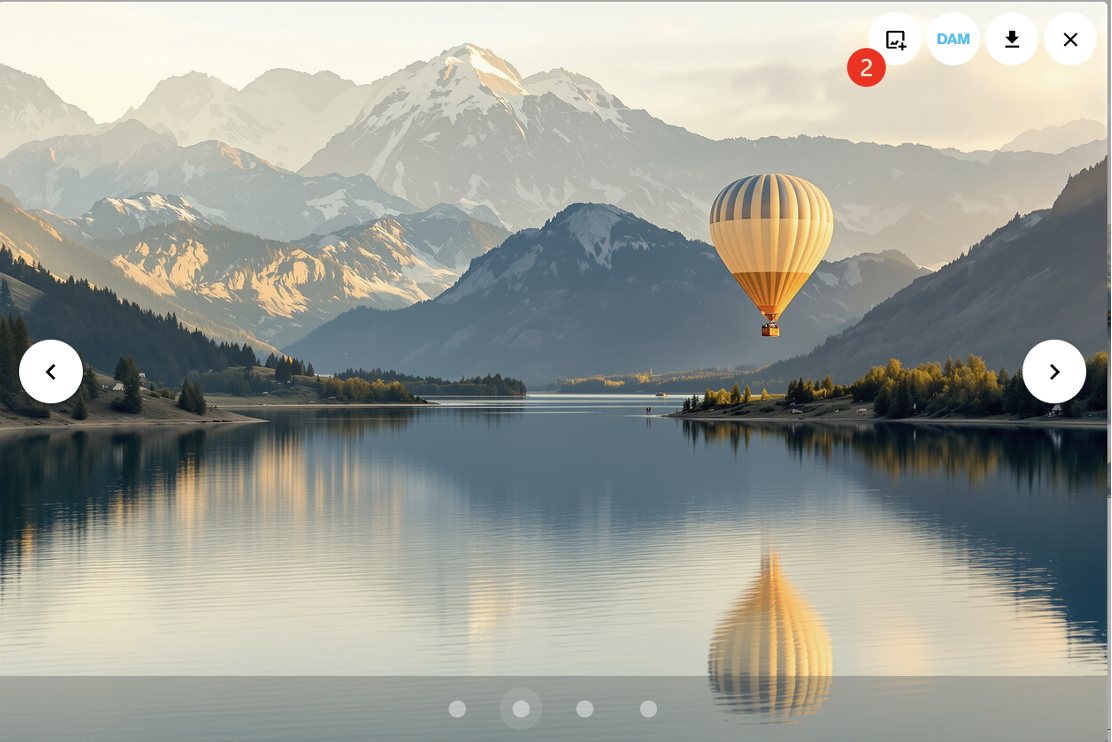
Image Costs
Black Forest Labs, the provider of the Flux image models integrated in AISSIST, calculates costs based on resolution (megapixels) for both input and output.
Generation or Editing WITHOUT Reference Image
This applies to pure creation from text or for edits where no original image is included (an edit without a reference image is technically equivalent to a new creation).
- Input image: 0 images = 0.0 cents
- Output image: 1 image × 1 MP × 3.0 cents = 3.0 cents
- Total cost per image: 3.0 cents
- For 4 images (AISSIST standard): 12.0 cents
For further scenarios see the section
Edit Image