English
Correct
Open text checking through Create → Text → Correct. Correct starts a separate chat in which AISSIST checks spelling and writing style using LanguageTool.
Entering text
Enter the text to check in the Enter your prompt here. field. Press Enter or use the send icon in the bottom-right corner to submit the text.
Checking errors
After submission, the Language Tool panel opens automatically on the right. The selected language appears in the Select Language field (Fig. 2, no. 1). You can use that field to select German, English, Spanish or French, among others. The Picky Mode toggle is also available (Fig. 2, no. 2).
Errors are underlined in colour in the text. In the example, the yellow underline marks the problematic wording (Fig. 1, no. 1). The LanguageTool panel groups the detected errors as an entry. The open entry displays the Correct the errors note, a correction suggestion (Fig. 2, no. 3) and the Ignore in this text action (Fig. 2, no. 4).
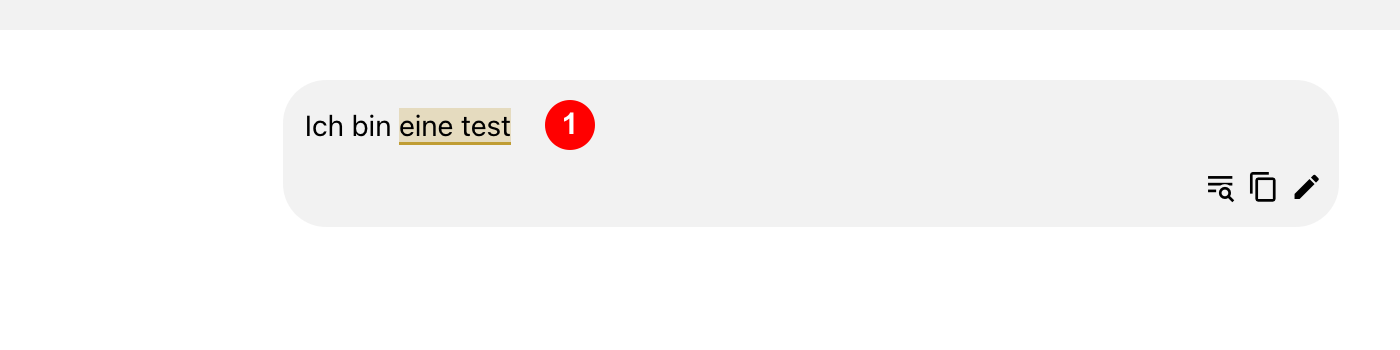
Figure 1: Marked error in the text.
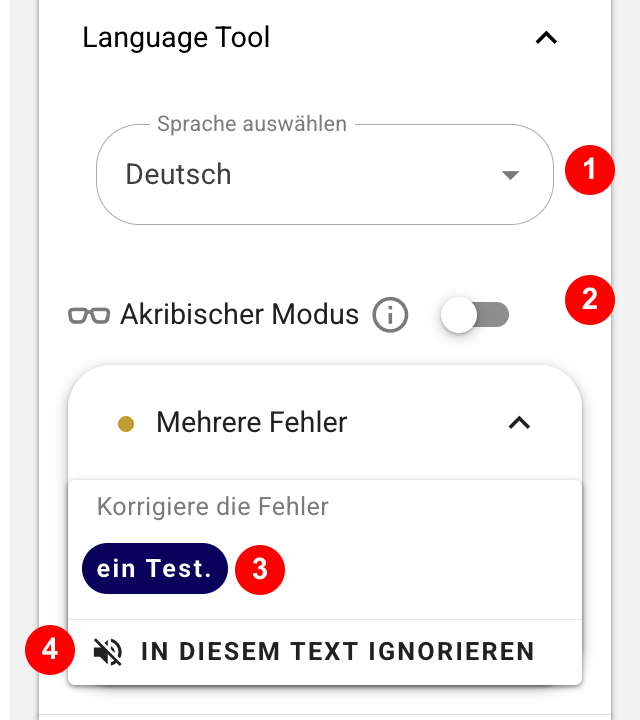
Figure 2: LanguageTool panel with language selection, Picky Mode, correction suggestion and Ignore action.
Applying a correction
Click the appropriate suggestion in the LanguageTool panel to apply it. The marked text is updated. For the sentence “I am a test”, the suggestion a test. is offered; after applying it, the marker disappears and the panel displays No errors found.
If you do not want to apply a suggestion, use Ignore in this text to hide the error for the current text.